
JSON to Table Converter: Why You Need It & How to Use It
Struggling to read raw JSON data? Learn why converting JSON to table format saves hours of debugging time, and how to do it in seconds—no coding required.
You're debugging an API response. The endpoint returns 50 user records with nested addresses, order history, and payment details. You stare at a wall of curly braces and square brackets, scrolling endlessly through the browser console.
Sound familiar?
This is the daily reality for developers, data analysts, and anyone working with JSON. The format that machines love is incredibly hostile to human comprehension.
The solution is simple: convert JSON to table. In this guide, I'll show you when this conversion matters most, and how to do it in seconds.
Why JSON Is Hard to Read (And Why That's OK)
JSON (JavaScript Object Notation) was never designed for human consumption. It was created for:
- Data interchange between systems
- Minimal file size (no redundant formatting)
- Machine parsing efficiency
When you're comparing 20 user records to find a missing email field, JSON forces you to:
- Mentally track nested brackets across hundreds of lines
- Manually count key-value pairs
- Scroll back and forth to compare fields
3 Real Scenarios Where JSON to Table Saves Hours
1. API Response Debugging
- The problem: You're integrating a third-party API. The documentation says the response includes
user.profile.contact.email, but some records returnnull. You need to find which users are affected. - Without a table: Open browser DevTools, expand JSON tree manually, check each record one by one. For 100 records, this takes 20+ minutes.
- With a table: Paste JSON into a converter, sort by the email column, instantly see all null values grouped together. Time: 30 seconds.
2. Data Validation Before Migration
- The problem: You're migrating customer data from MongoDB to PostgreSQL. The export is a 5MB JSON file. Before writing any migration scripts, you need to verify data quality—duplicate emails, missing phone numbers, inconsistent date formats.
- Without a table: Write a custom script to scan the data, run it, fix bugs, run again. Takes hours.
- With a table: Convert JSON to table, use column filtering to surface anomalies, export clean data as CSV for database import. Time: 5 minutes.
3. Sharing Data with Non-Technical Teammates
- The problem: Your product manager asks for the raw analytics data from yesterday's A/B test. The data exists as JSON from your analytics API.
- Without a table: "Sorry, I can only give you the raw JSON file..." (PM stares blankly)
- With a table: Export as Excel, share a formatted spreadsheet. PM can sort, filter, and build charts immediately. Time: 1 minute.
How to Convert JSON to Table Instantly
You have two options:
Option A: Write Code (Pandas, JavaScript)
If you're building an automated pipeline that runs daily, writing code makes sense. Python's Pandas library can convert JSON to DataFrame in 3 lines:
pythonimport pandas as pd
df = pd.read_json('data.json')
df.to_excel('output.xlsx')
But for ad-hoc tasks—debugging, data exploration, quick validation—writing code is overkill.
Option B: Use an Online Converter (Recommended)
Online tools like our JSON to Table Converter let you:
- Paste or upload any JSON (API response, file, or AI-generated data)
- See results instantly with interactive expand/collapse for nested data
- Export anywhere — CSV, Excel, HTML, Markdown with one click
Why this beats DIY solutions:
| Feature | Code Script | Browser console.table() | JSON to Table Tool |
|---|---|---|---|
| Nested object handling | 50+ lines | ❌ Fails | ✅ Interactive expansion |
| Large datasets (10k rows) | Performance issues | ❌ Browser crash | ✅ Virtual scrolling |
| Export to Excel | Requires library | ❌ No | ✅ One-click |
| Privacy | Depends on server | ✅ Local | ✅ 100% browser-based |
Handling Nested JSON: The Real Challenge
Flat JSON arrays are easy. Real-world APIs return nested nightmares like this:
json{
  "user": {
    "id": 123,
    "profile": {
      "name": "Alice",
      "address": {
        "city": "New York",
        "zip": "10001"
      }
    },
    "orders": [
      {"id": "A1", "total": 99.99},
      {"id": "A2", "total": 149.50}
    ]
  }
}
How does a table handle this?
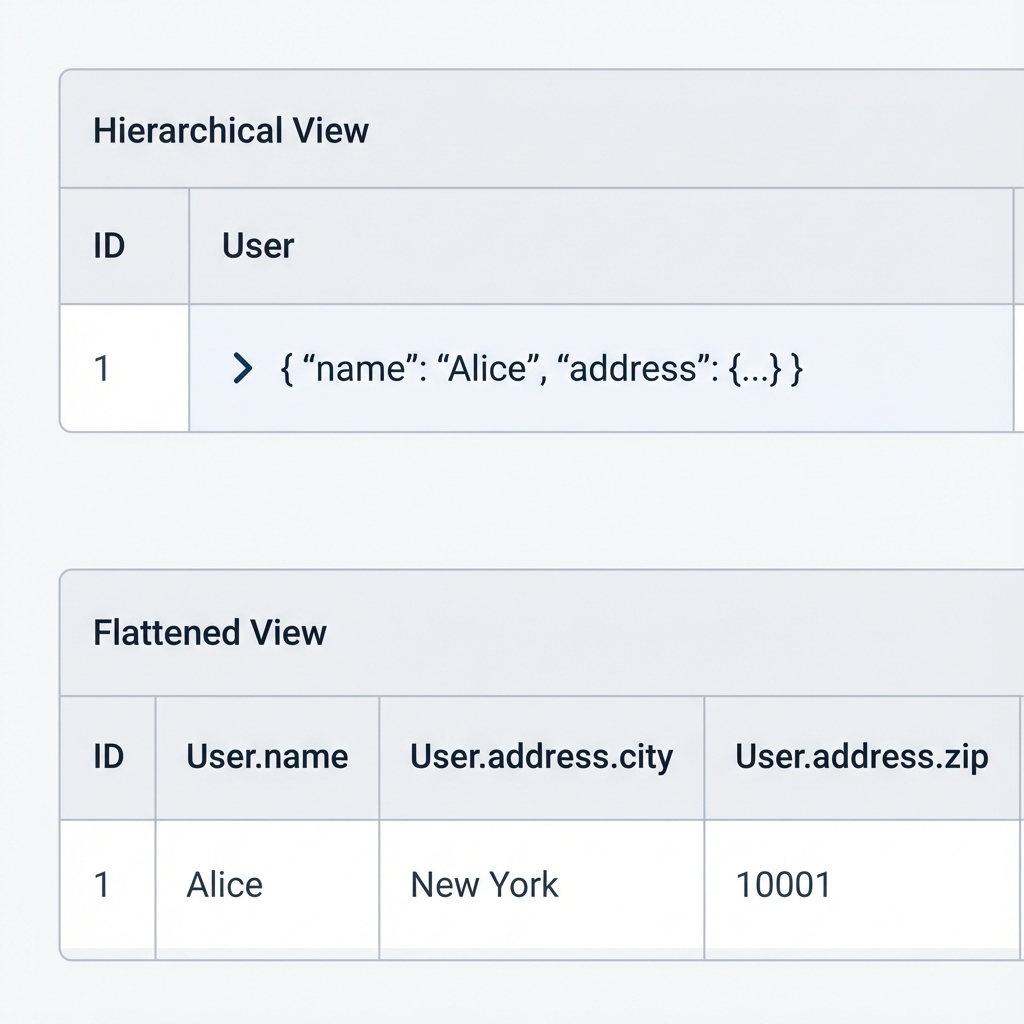
Good converters offer two views:
- Hierarchical view: Nested objects display as expandable cells. Click
{3 fields}to revealaddress.city,address.zip, etc. - Flattened view: Columns use dot-notation like
profile.address.city. Every nested field becomes a searchable, sortable column.
Our JSON to Table tool supports both. Toggle between views depending on whether you need context (hierarchical) or comparison (flattened).
Quick Tips for Better Results
Tip 1: Validate first, convert second
If your JSON has syntax errors (missing commas, unquoted keys), conversion fails. Use our JSON Validator to check syntax before converting.
Tip 2: Filter before export
Large datasets export faster when you filter first. Use column search to narrow down to relevant records, then export only what you need.
Tip 3: AI outputs work too
ChatGPT, Claude, and other AI tools often output JSON. Copy-paste directly into the converter to visualize structured data from AI responses.
Ready to Try?
Stop wrestling with curly braces. Paste your JSON into our free converter and see your data clearly in seconds.